
View and Review an Application Form
The View Application page includes a General Information section along with additional tabs such as Application, Accommodation, Documents, Payment, Journey Status, ATT, Cases & Holds and Examinations.
To view the application, follow the following steps:
- Navigate to the left side navigation menu and select Applications from the list.
- Click the View icon under the Action Column of the selected application to View the complete details of the submitted Application Form.
Review the application details before processing the request. You may also navigate to the sections provided for the related details Application, Accommodation, Payment, Journey status, Authority to Test (ATT), Cases & Holds and Examinations of the candidate, if applicable.
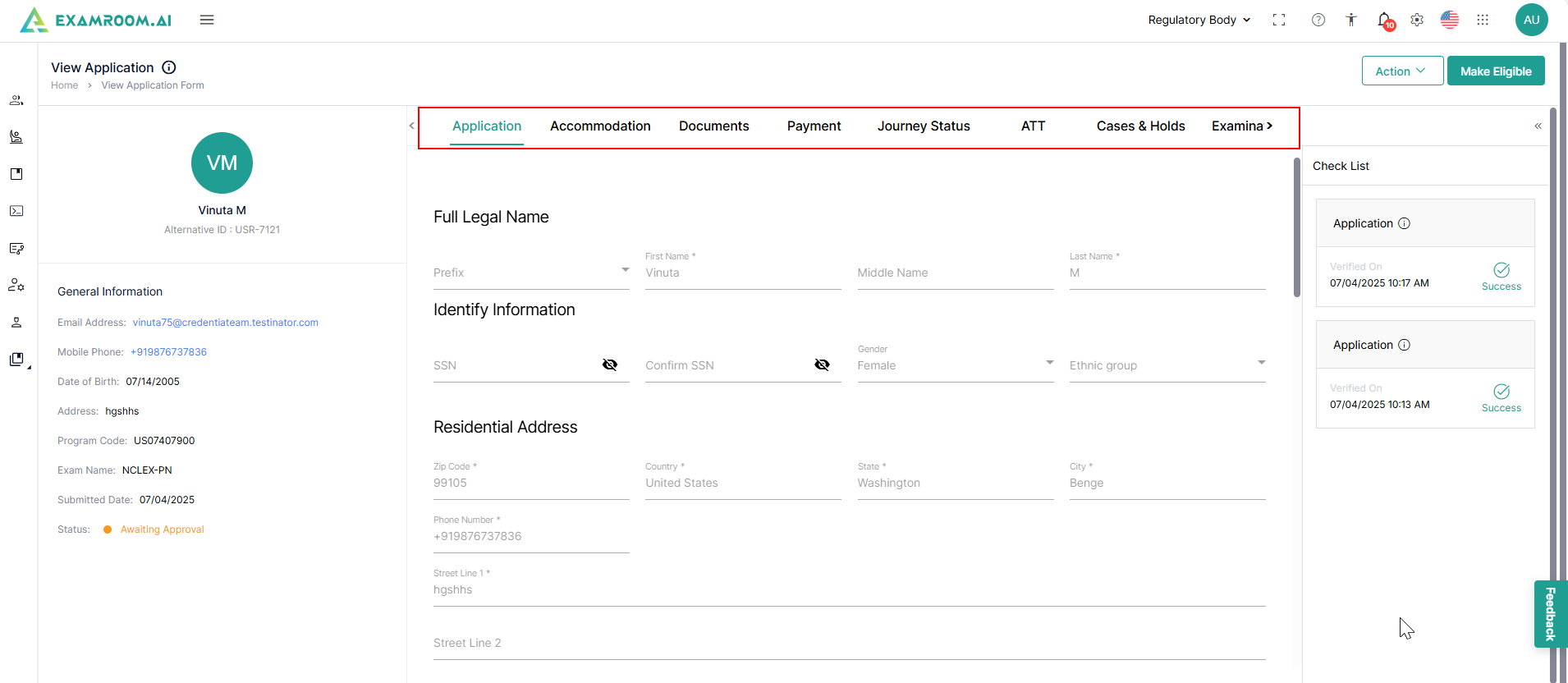
General Information
The General Information section displays information about the candidate, including the Email Address, Mobile Phone, Date of Birth, Address, Program Code, Exam Name, Submitted Date, and Status.
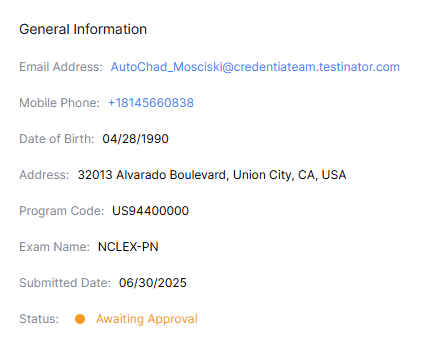
Application
The Application Form section displays the complete application submitted by a candidate. The application form includes the submitted application information and attached documents.
- In the Application Check List field, you can view the previous review activity details of the application.
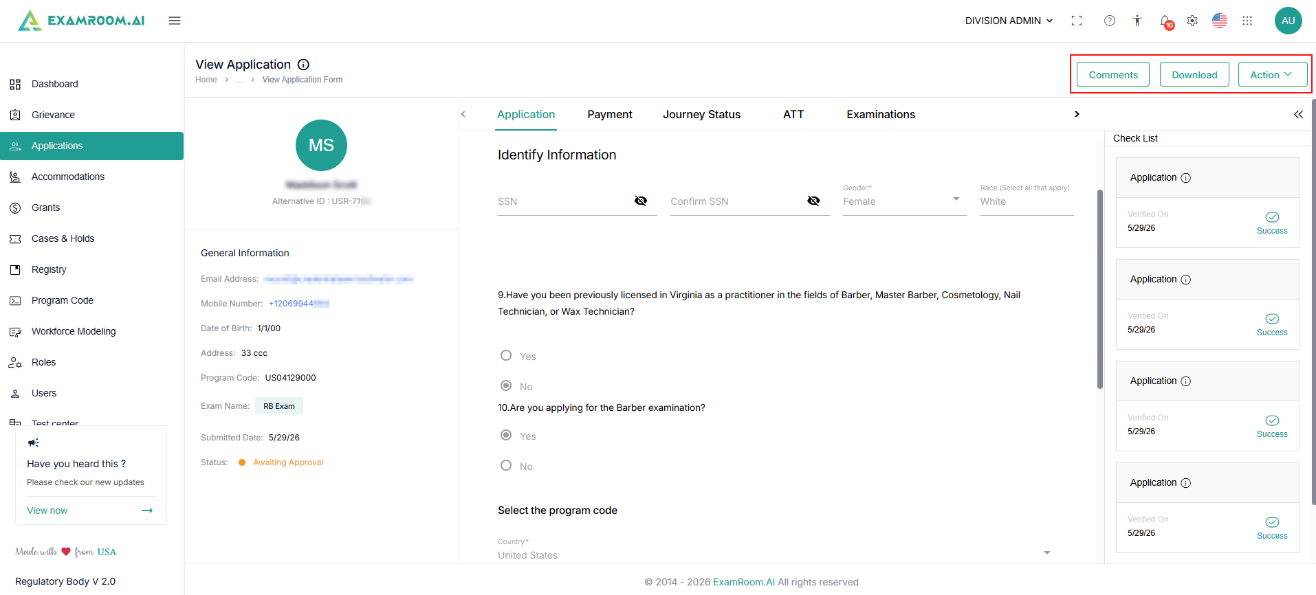
- Select any of the options below to take action:
- Click the Make Eligible button on the top right corner of the window to approve the application.
Note: To see the Make Eligible option, you must take action on any submitted accommodation request or attached documents in the Accommodation and Documents sections. This is applicable only if the candidate has requested for Accommodation/s.
- Click the Comments button to update the internal reference remarks.
- Click the Download button to save the application as a PDF file on your device.
- Click the Action button and select the options from the dropdown to take action on the submitted application:
- Request Changes: Select to send back the application to the candidate and request changes in the details.
- Deny: Select to reject the application request.
- Block: Select to block the application form.
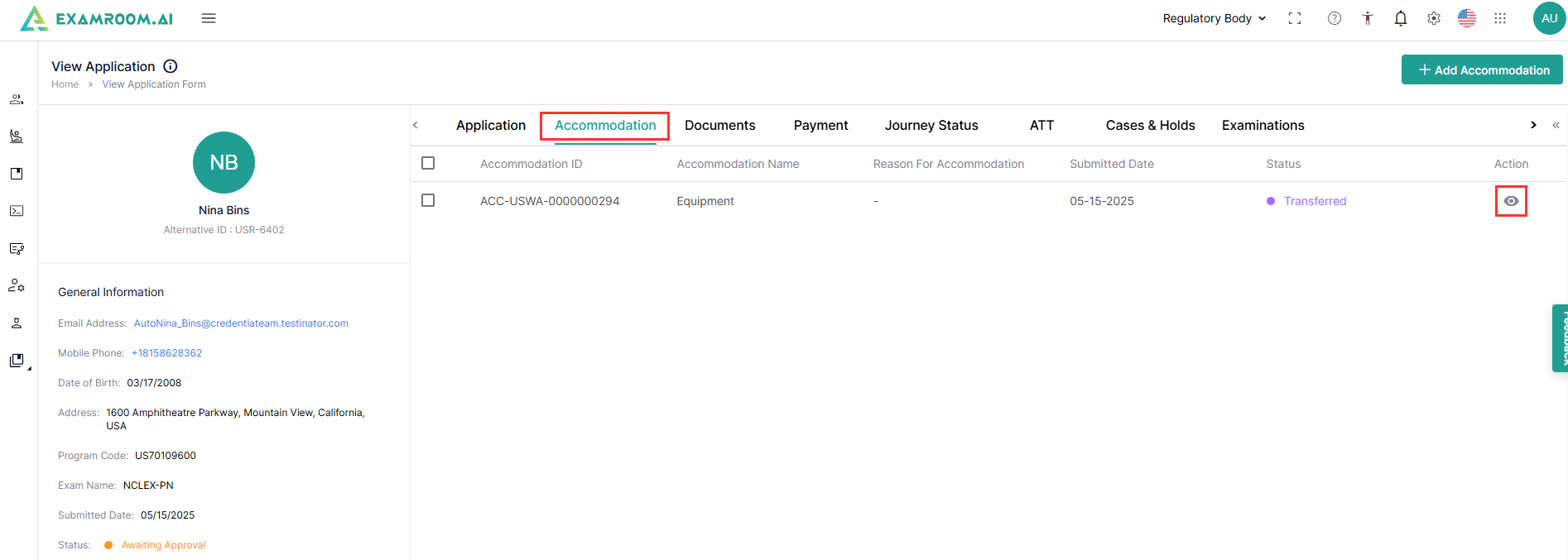
Accommodation
The Accommodation tab displays the accommodation request submitted by the candidate. If any. This section includes the details below:
- Accommodation ID: Displays the unique ID generated.
- Accommodation Name: Displays the type of accommodation requested by the candidate.
- Reason for Accommodation: Displays the short description added by the candidate.
- Submitted Date: Displays the date when the accommodation is submitted.
- Status: Displays the status of the accommodation.
- Action: Approve, reject, or transfer the accommodation request.
- To review the accommodation, refer to the Review the Accommodation section.
Payment
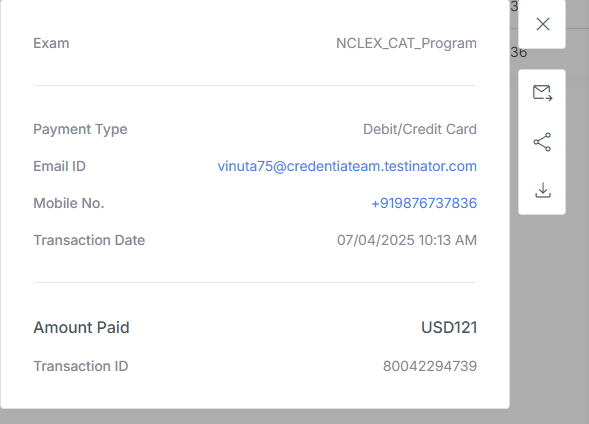
The Payment section displays the payment(s) made by the candidate.
- Click the Payment tab to view the payment details.
- Click the View icon under the Action header to view the payment receipt, and you can forward via email, share, or download the receipt by clicking the respective icons on the right side of the payment receipt.

Journey Status
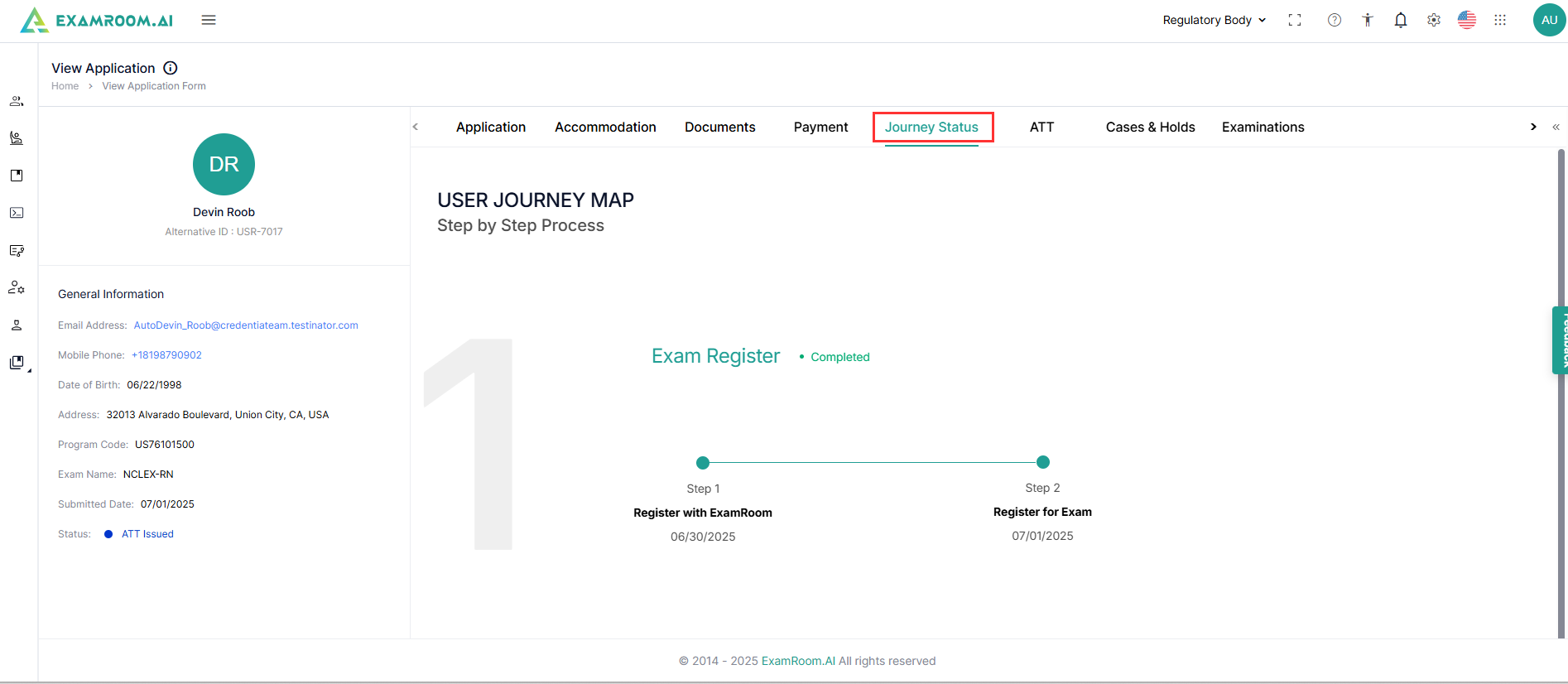
The Journey Status section displays the status of the Exam application.
- Click the Journey Status tab to view the candidate’s status.
ATT
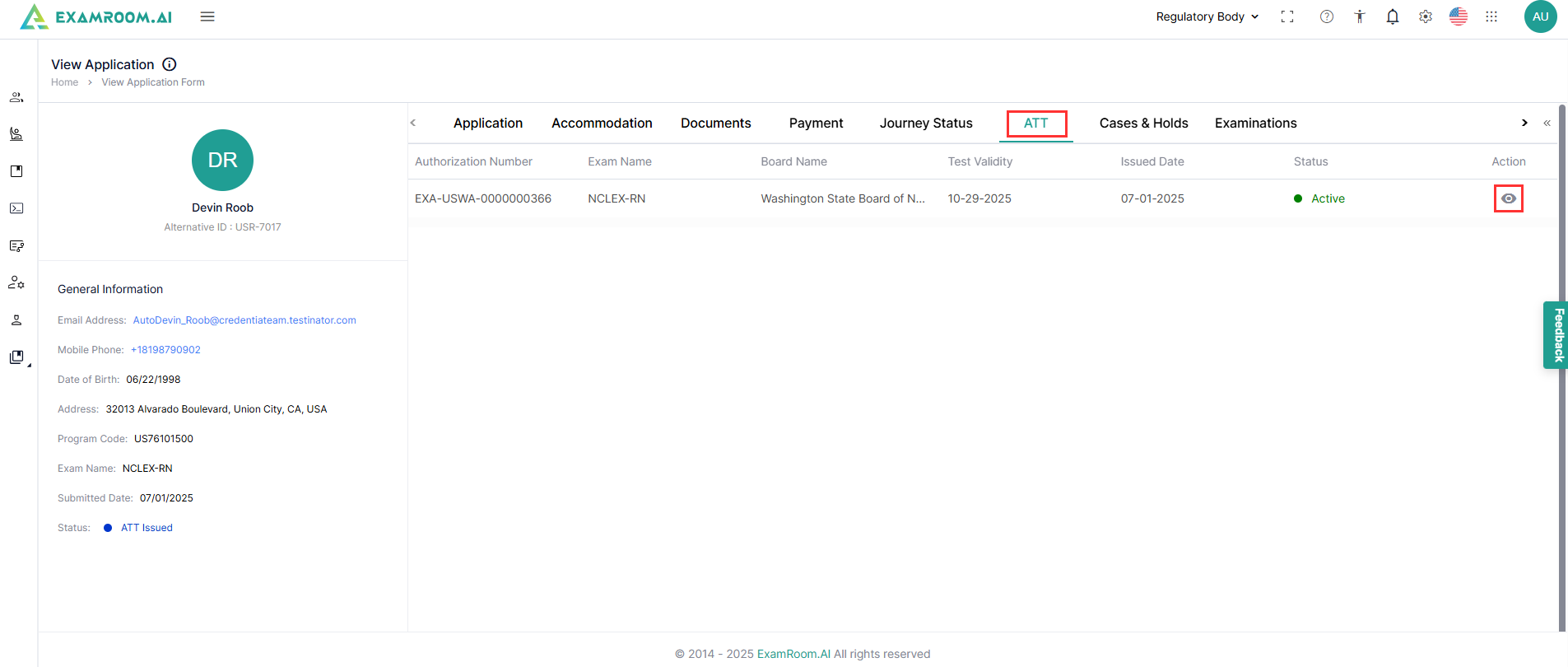
The ATT section displays the issued ATT details with the status. Follow the steps below to view the Issued ATT.
- Click the ATT section tab to view the list of Issued ATT for the registered exam.
- Click on the View Icon under the action column to view the ATT.
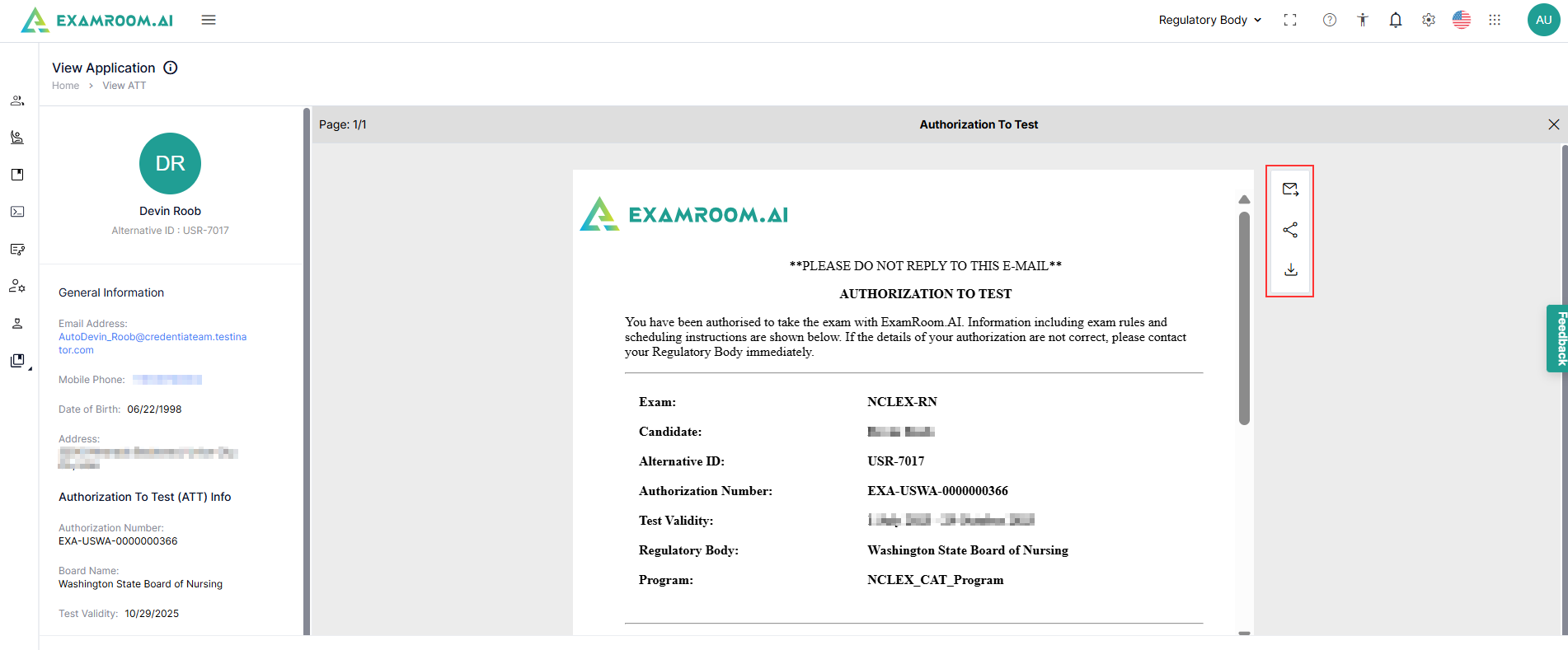
- The issued ATT is displayed, and you can forward via email, share, or download the document by clicking the respective icons on the right side of the issued ATT.
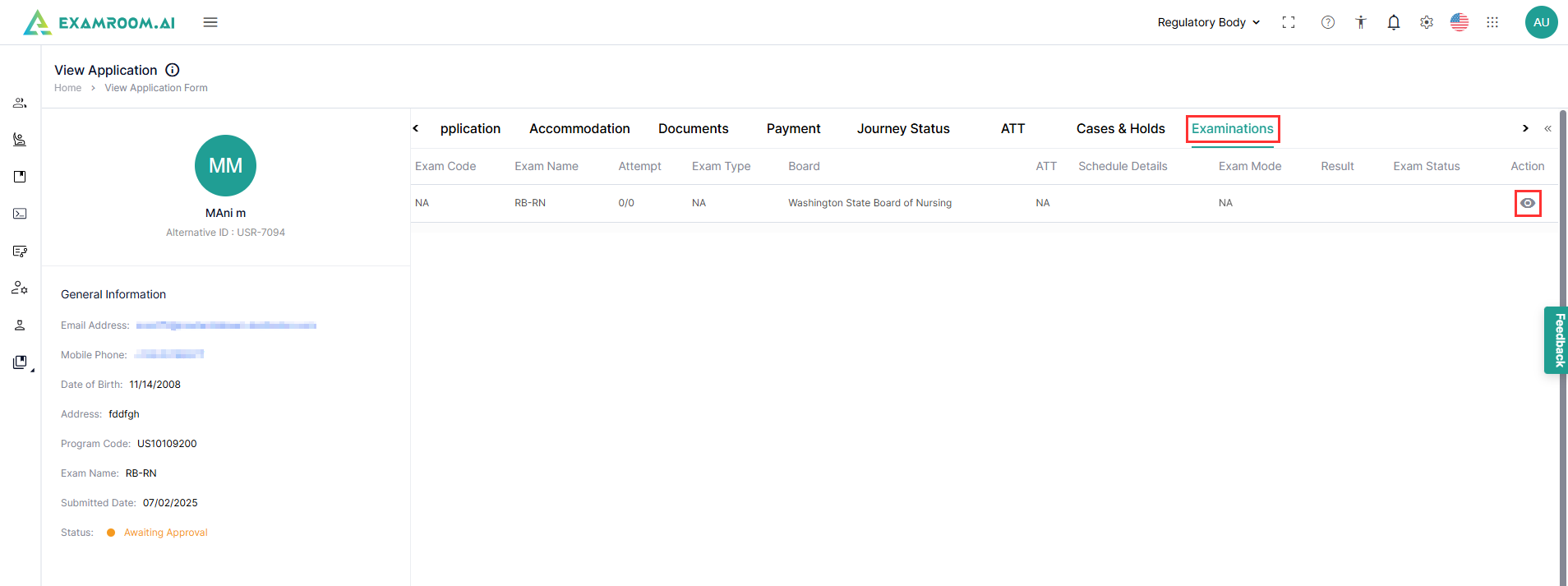
Examinations
The Examinations section tab displays the list of all the exams previously completed by the candidate. Follow the steps below to view the complete details of the exam results.
- Click the Examinations tab to view the list of exam results.
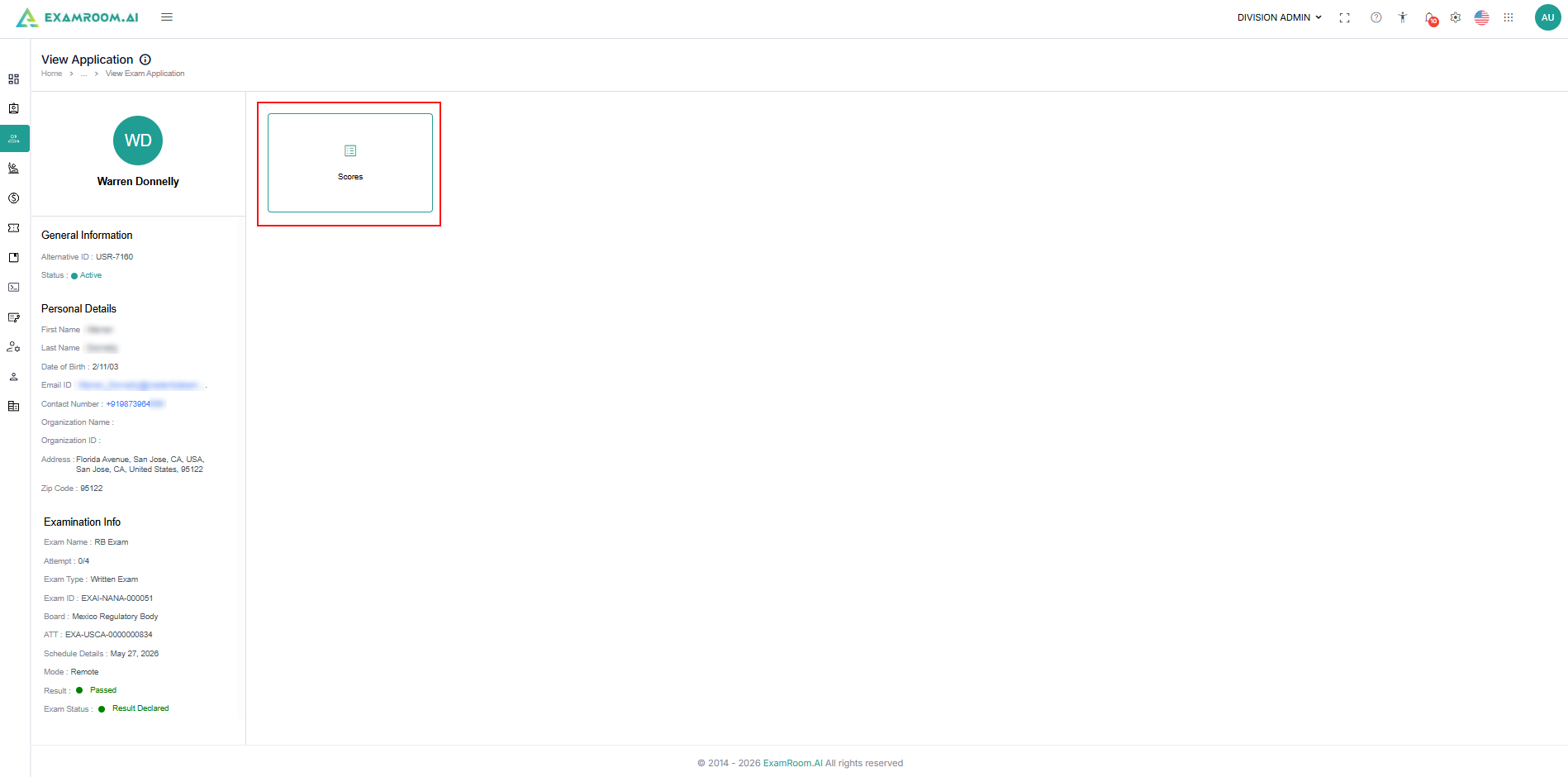
- Click on the View icon under the action column of an exam result to check its complete details.
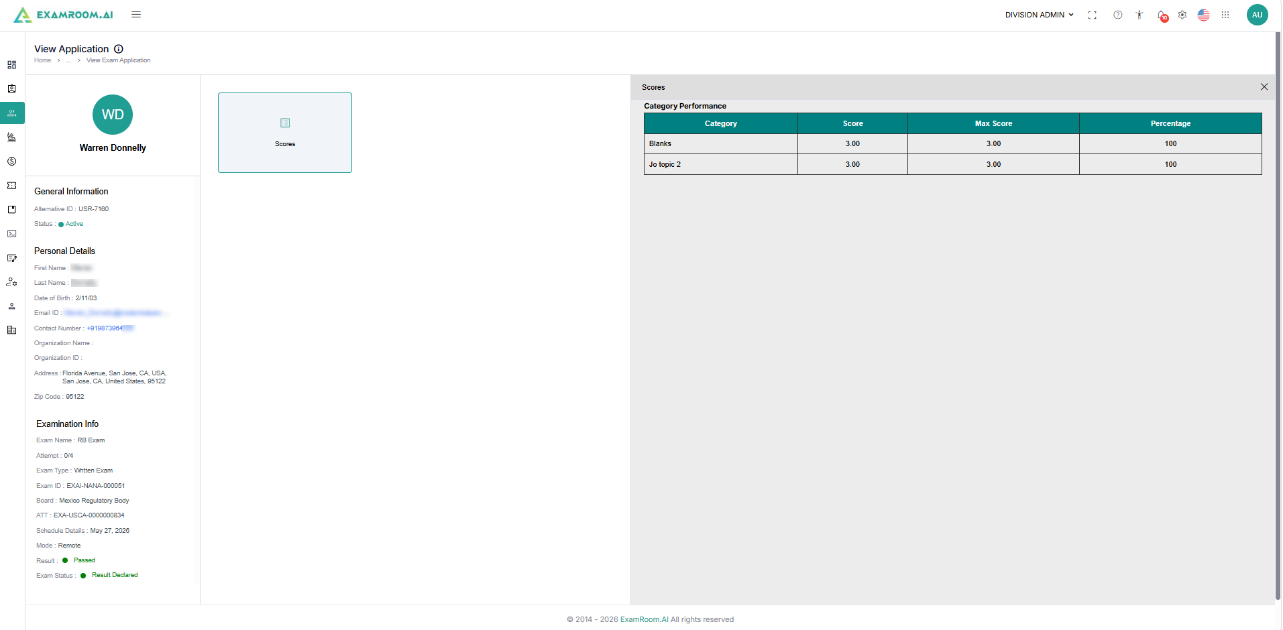
- In the View Exam Application page, click the Scores option to view the exam result.
- When you click on the Scores, the result appears on the right side of the screen, where you can view the details.
- After reviewing the results, click the Declare Results icon in the top right corner of the screen to declare the results to the candidate.
- A pop-up notification will appear, confirming that the Results Declaration is Successful.
Note:
- Once the results are declared, the Candidate will be notified that the results have been declared.
- After the results are declared, the Declare Results button will no longer be visible, and the application status will change from Awaiting Results to Results Available.