Temporary Permit
The Temporary Permits module allows you to review and process temporary permit requests submitted by candidates. You can view request details, add comments, approve requests, deny requests, and review activity history.
Follow the steps below to review the requested temporary permit:
- Navigate to Settings and select Temporary Permit under Organization.
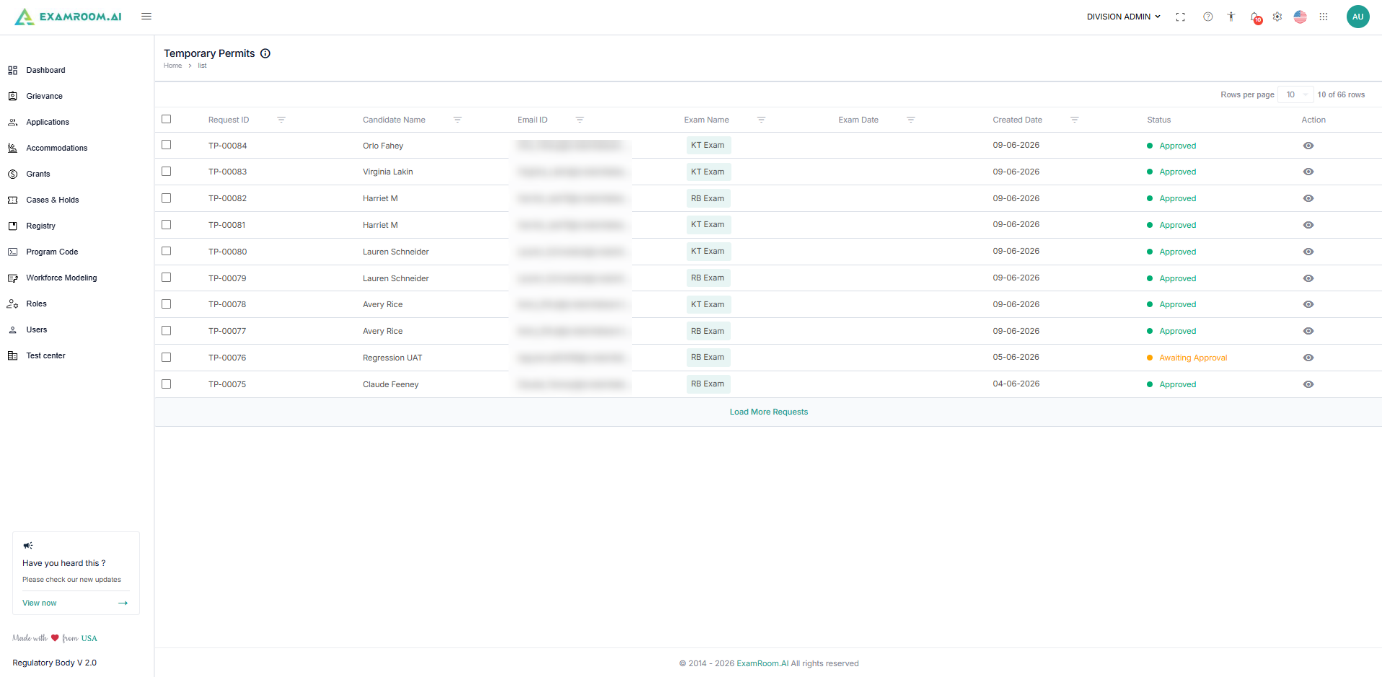
- In the Temporary Permit section, you can view all the temporary permit requests listed in a table format with the following details:
- Request ID: The unique Request ID generated for a request is displayed.
- Candidate Name: Name of the candidate who has submitted the request.
- Email ID: The email address of the candidate is displayed.
- Exam Name: Name of the exam for which the request has been submitted
- Exam Date: Exam date is displayed.
- Created Date: The date when the request was submitted is displayed.
- Status: The Status of the request is displayed.
- Actions: View icon to review /view the complete details.
- Use the View option to review the details of a temporary permit application.
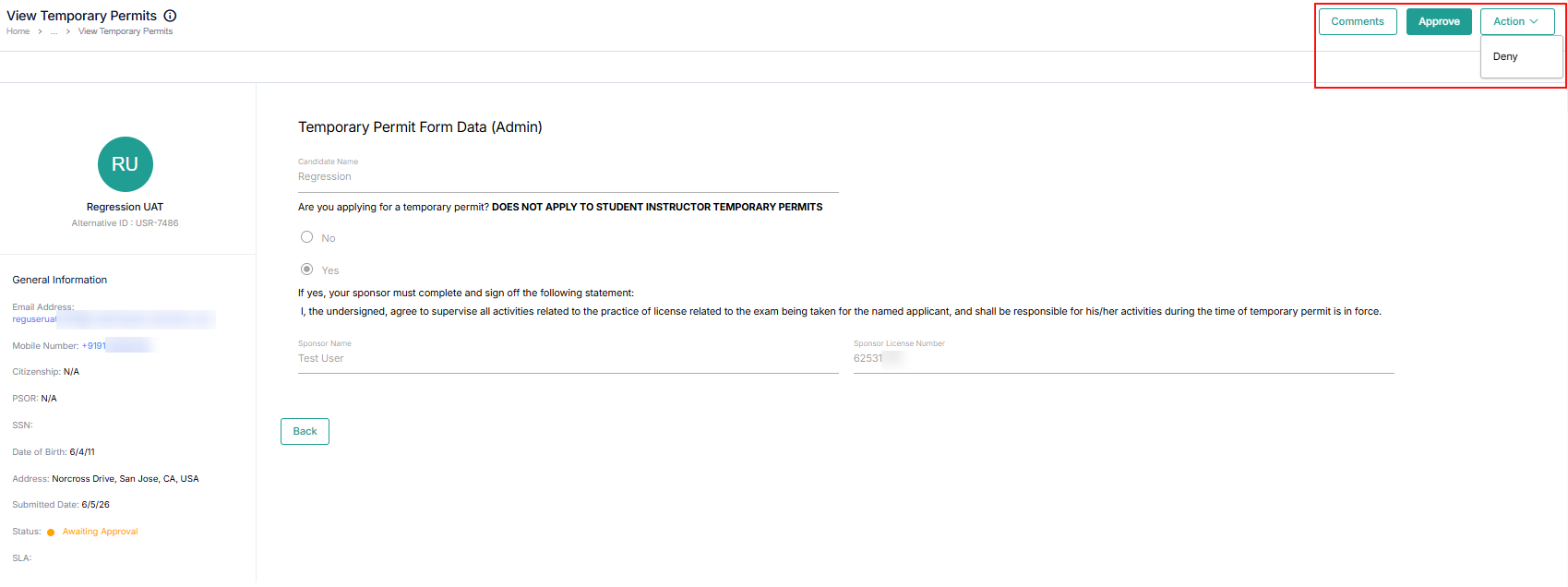
- In the View Temporary Permit section, you can see the full details of the requested application along with the related candidate information.
- Comments: In the comments section, you can enter the internal remarks and view previous comments.
- Click the Comments button, enter your comments, and click the Add Comments button to save.
- Deny: To deny the request, click the Action dropdown and click the Deny button at the top right side of the page.
- Approve: To approve the request, click the Approve button at the top right side of the page.