Manage Certificates
The Manage Certificates module allows you to view issued certificates and license records, track their status, and access detailed certificate information for individual candidates. Also, you can print them if necessary.
Follow the steps below to view and print the candidate certificates:
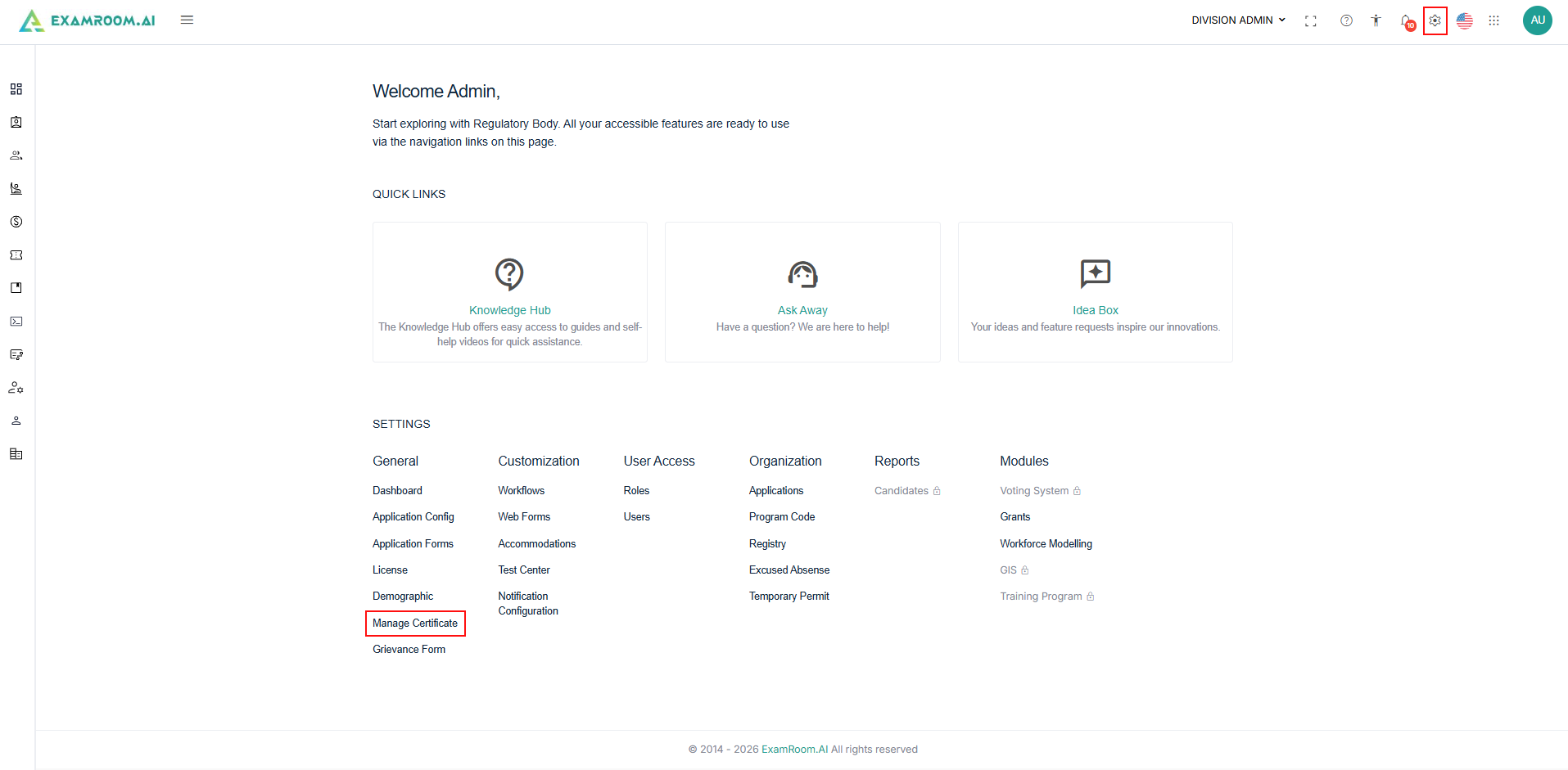
- Navigate to Settings and select Manage Certificate under General.
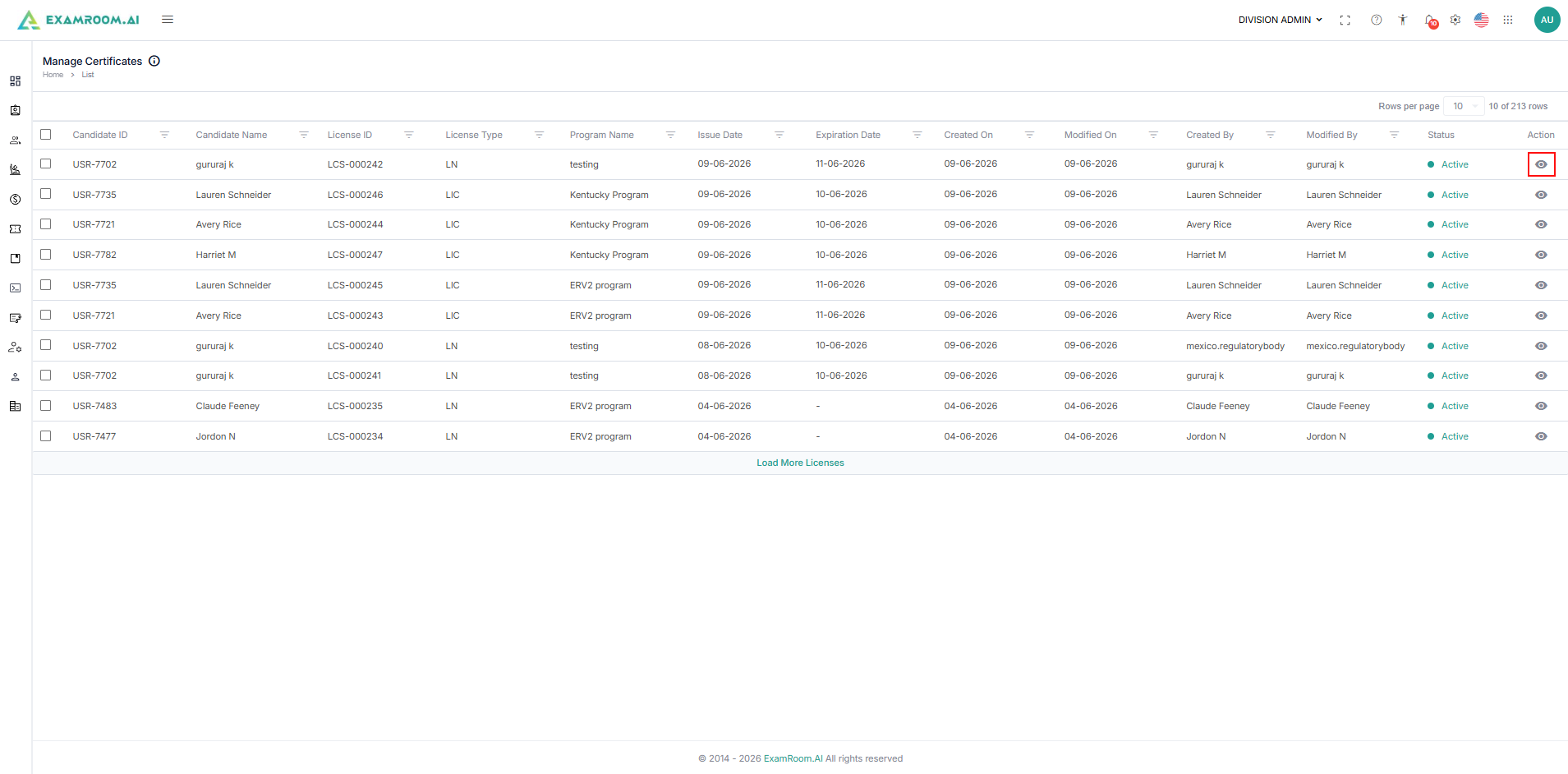
- The Manage Certificates page displays a list of all issued certificates with their status and the following details:
- Candidate ID: The unique ID assigned to the candidate initially is displayed.
- Candidate Name: Name of the candidate holding this certificate.
- License ID: Unique License ID assigned at the time of certificate creation.
- License Type: Type of the license issued.
- Program Name: Name of the program for which the certificate is issued.
- Issue Date: The date from which the certificate is issued.
- Expiration Date: Date when the certificate expires.
- Created On: Date when the certification is created.
- Modified On: The date indicates when a demographic or other modification is made to the certificate. If no modifications have been made, the date will match the initial creation date.
- Created By: Name of the user who created the certificate.
- Modified By: Name of the user who modified the certificate.
- Status: The status of the certificate is displayed.
- Actions: A View icon to view complete details and print the certificate.
- Click the View icon to view complete details and print the certificate.
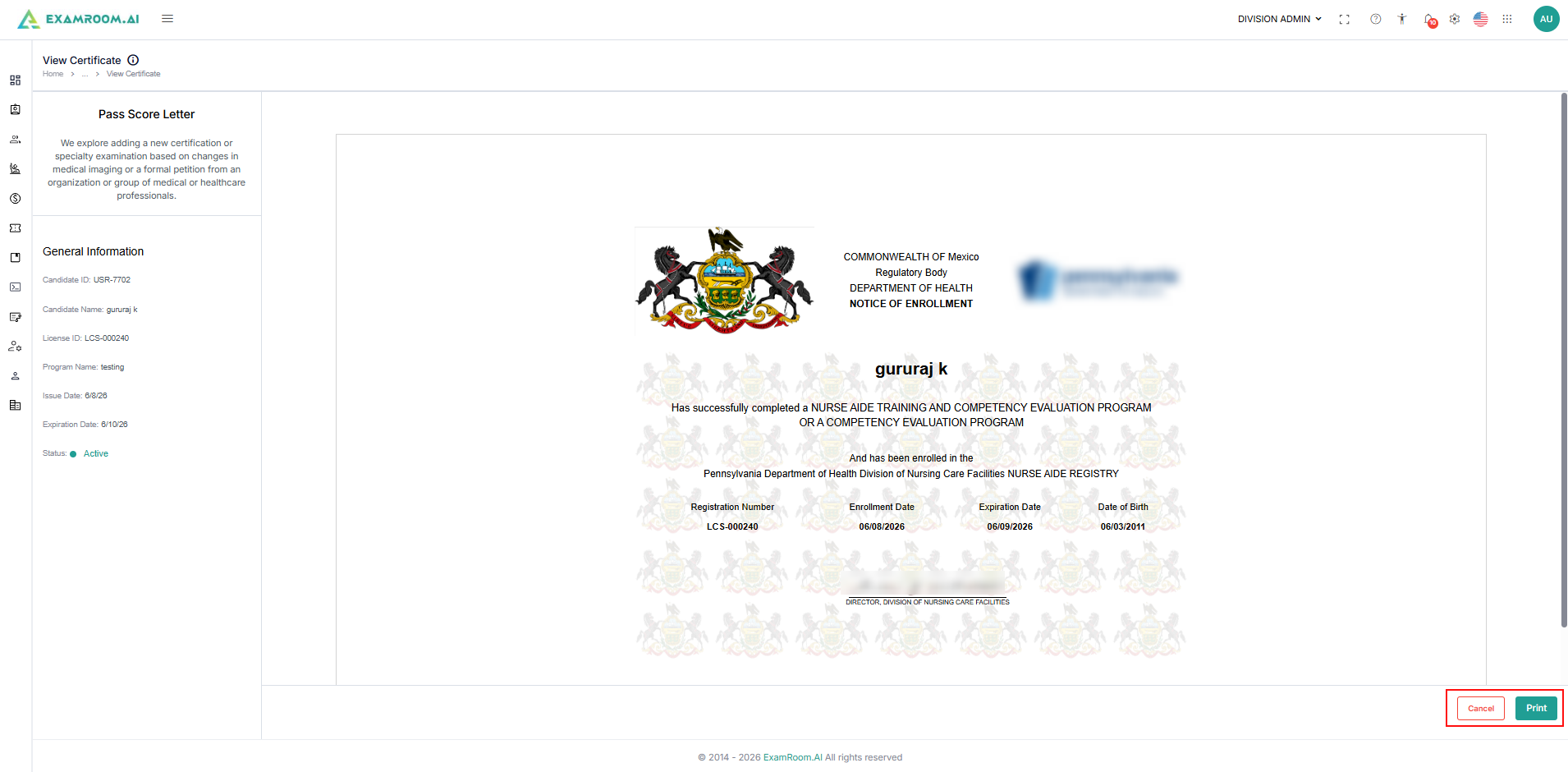
- In the view certificate section, you can preview the selected candidate's certificate and their details.
- Click the Print button to either print the certificate or save a digital copy to your device.
- Click Cancel to return to the previous page.
- Click Cancel to return to the previous page.