Applications
The Application section serves as a major hub for managing candidate exam applications. This section allows users to view, review, and take action on applications by status. Users can access detailed application information, update records, and manage approvals seamlessly. This feature streamlines the application management process, ensuring efficient, accurate handling of candidate submissions for regulatory board examinations.
View the Application List
To view all submitted applications, follow the following steps:
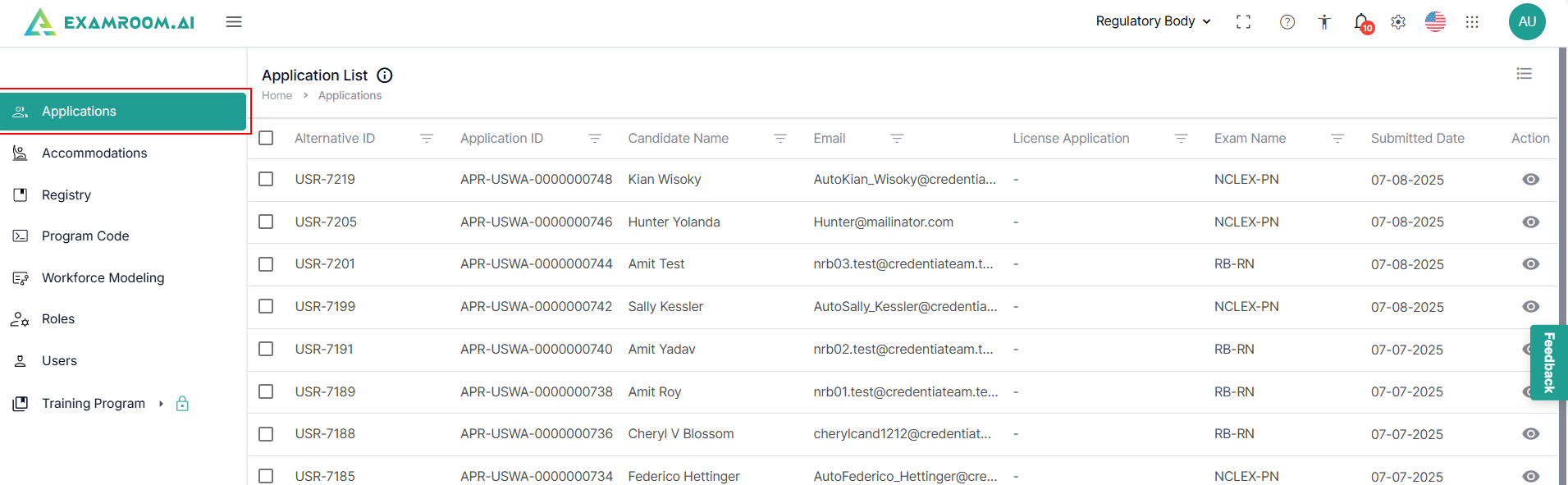
- Navigate to the left side navigation menu and select Applications from the list.
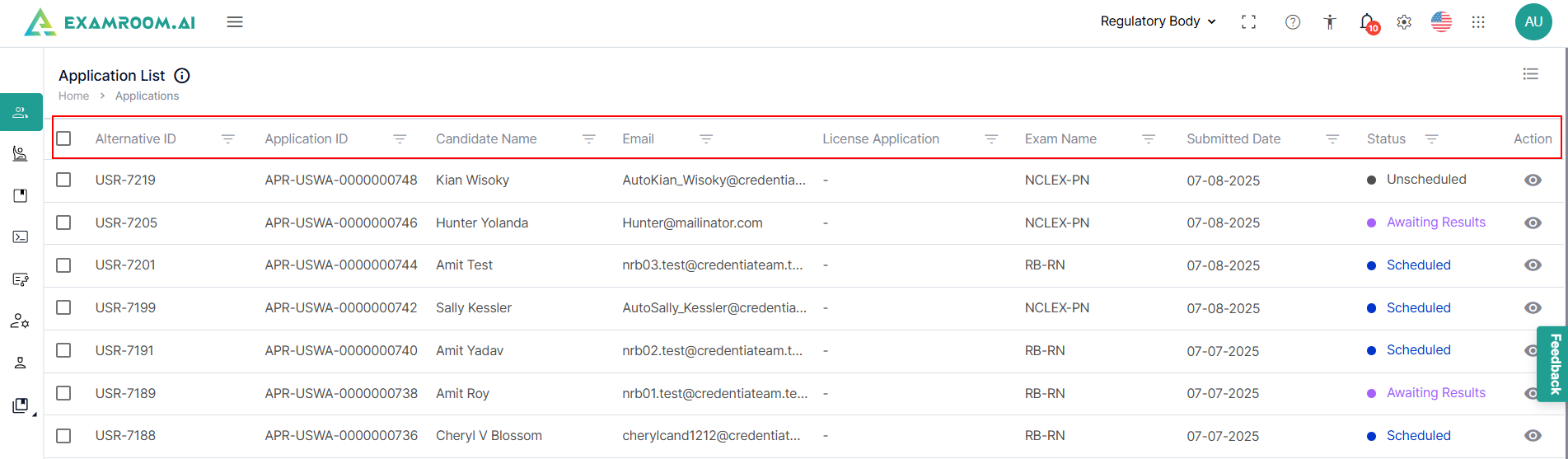
- In the Applications section, all submitted applications are displayed in a tabular format with their key information to identify the application that includes the following details:
- Alternative ID: Displays the unique ID generated for the candidate.
- Application ID: Displays the unique application ID generated.
- Candidate Name: Displays the name of the candidate who applied.
- Email: Displays the candidate's email ID.
- Application Type: Displays the type of application, whether it is applied initially or reinstated.
- License Application: Displays the applied license type by the candidate.
- Exam Name: Displays the name of the exam selected by the candidate.
- Submitted Date: Displays the application submitted to date.
- Status: Displays the status of the application.
- Action: Under Actions, click the View icon to view or review an application from the list.
Customize the Display of the Application List
Customize the table and arrange the columns to your preference. Follow the below steps to customize the display:
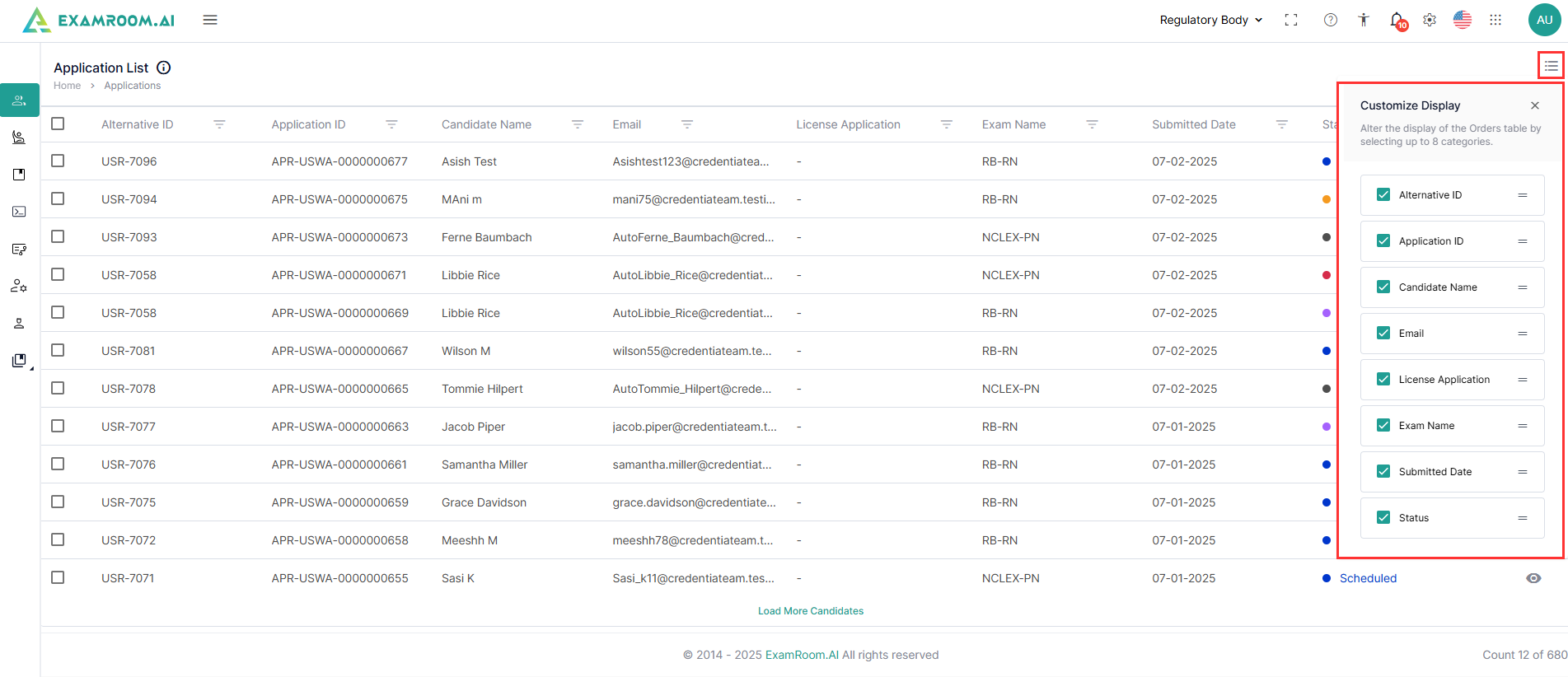
- Click the Customize Display icon and select the required check boxes to view the respective columns in the table.
- To arrange/rearrange the order of the columns, click, hold, and move the Drag icon provided next to each column label.
Filter and Search Options
To find an application from the list, utilize the filter options. Follow the steps below to filter search applications:
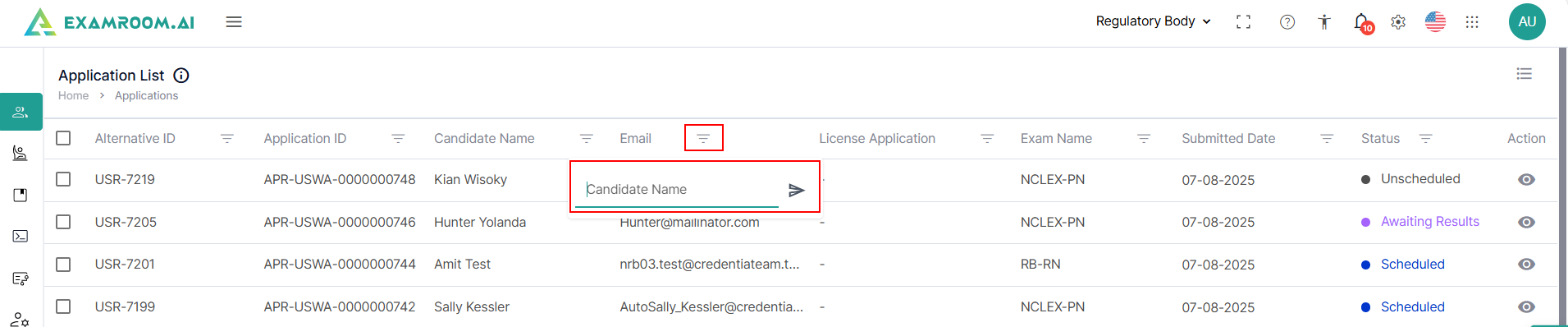
- Click the Filter icon next to each header.
- Search applications based on Alternative ID, Application ID, Candidate Name, Email, License Application, Exam Name, Submitted Date, and Status.
- To view all the applications in the list, remove the added filters.
- Search based on any of the categories to find the intended application.
Note: Filters search for values that begin with the entered text. Enter the first few characters of the value to narrow down the results.