Registry
The RB Registry section is designed to manage and maintain a comprehensive record of all Regulatory Body (RB) Candidates. This section allows users to access, update, and track information related to candidate registrations, program codes, approvals, and application statuses
To view the registry list, follow these steps:
- Navigate to the left side navigation menu and select Registry from the list.
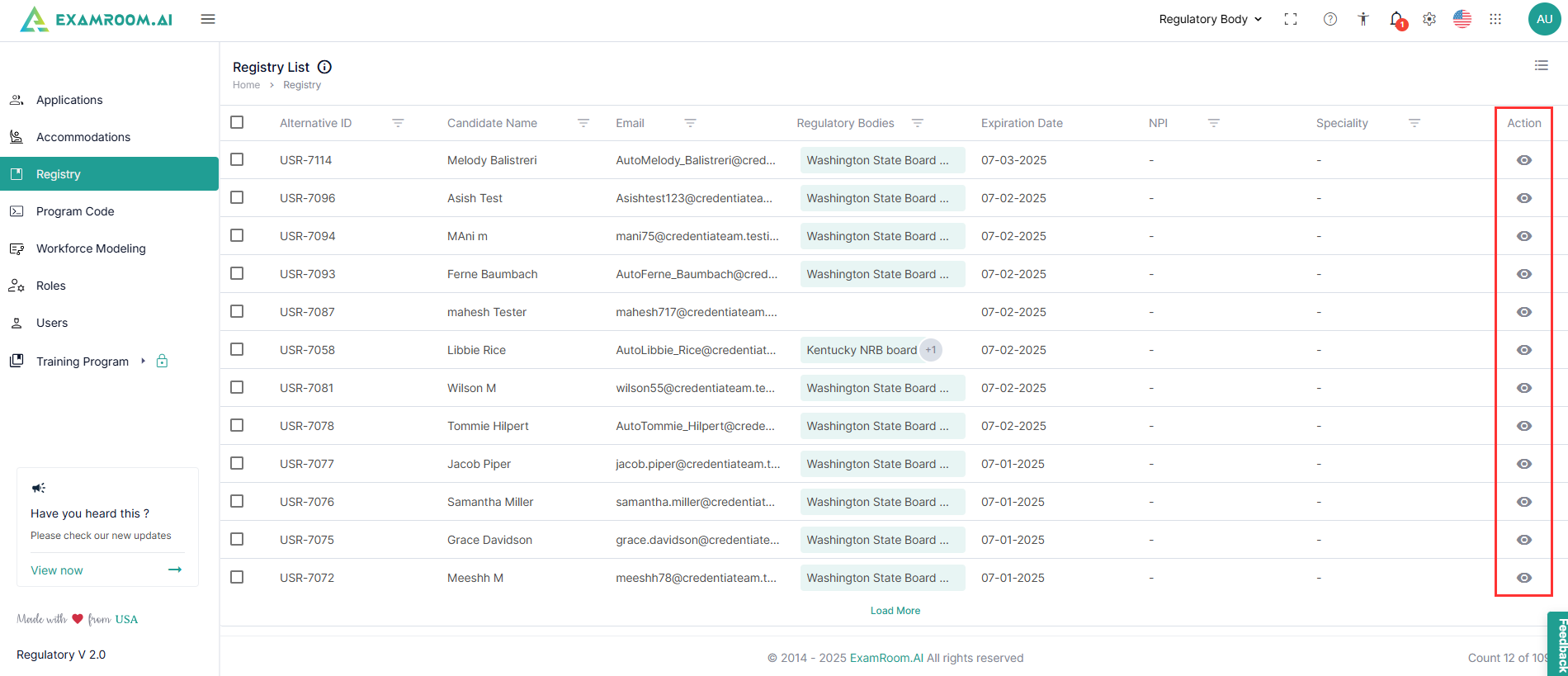
- The Registry List is displayed as shown below.
- The Registry List is displayed in a tabular format and contains the following details:
- Alternative ID: Displays the unique ID generated.
- Candidate Name: Displays the name of the candidate who applied.
- Email: Displays the contact email of the candidate.
- RBs: Displays the registered RBs details of the candidate.
- Programs: Displays the linked or associated program.
- Expiration Date: Displays the application's recently modified or used date.
- Action: Allows you to proceed with the application further.
- Click the View icon in the Action column to access the application details and take necessary actions.
Filter and Search Options
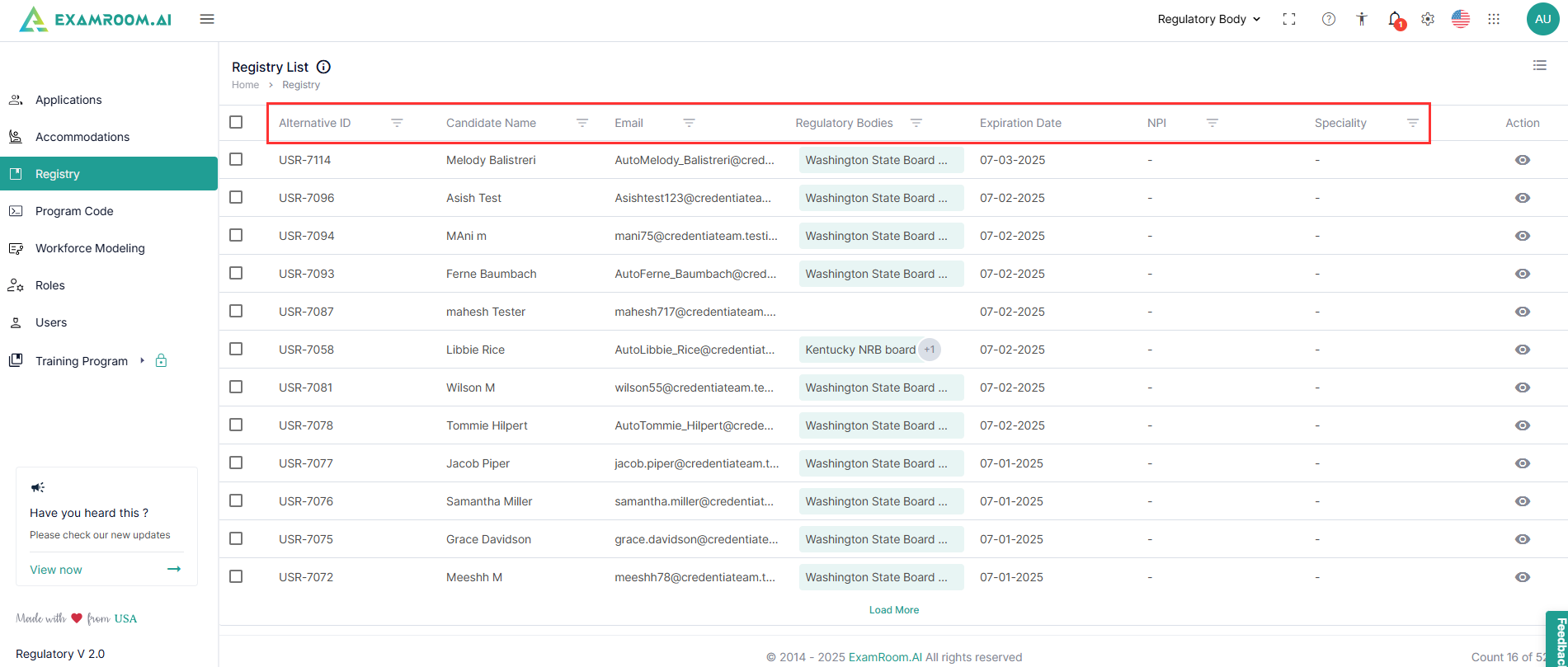
To find a candidate registry from the list, you can utilize the filter options. Follow the steps below to filter search applications:
- Search for the specific registry using the Filter options based on Alternative ID, Candidate Name, Email, Regulatory Bodies, NPI, and Specialty.
- To view all the registry details in the list, you need to remove added filters.
- You can search based on any of the categories to find the candidate registry.
View Candidate Registry
To view the candidate’s registry details, follow the following steps:
- Navigate to the left navigation menu and select the Registry from the list.
- Click the View icon under the Action column to view the selected candidate’s registry details.
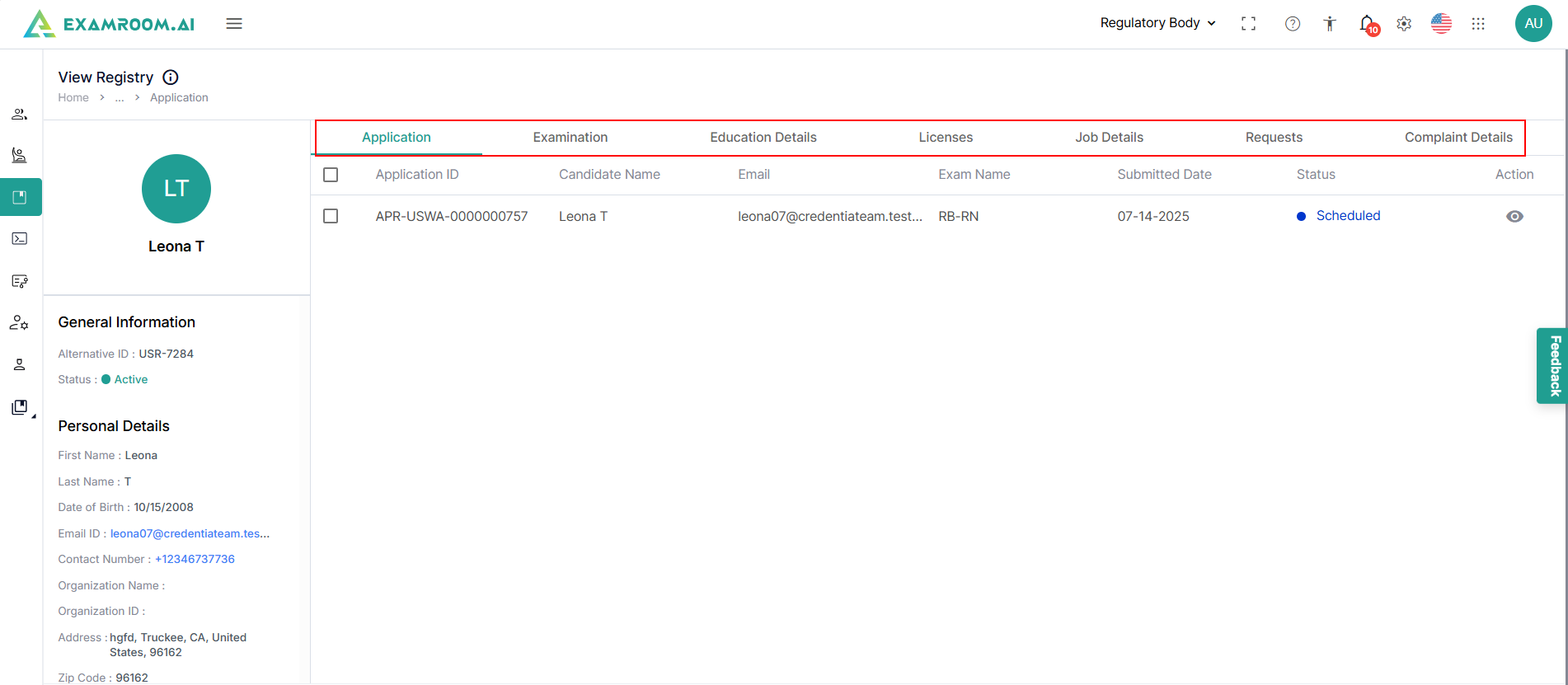
- The View Registry page includes details on General Information, Applications, Examination, Education Details, License, Job Details, Requests, and Complaint Details.
General Information & Personal Details
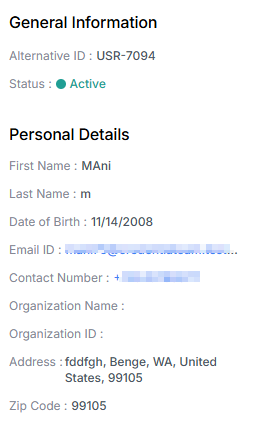
In the General Information section, the candidate's Alternative ID is displayed. The Personal Details section provides additional information, including the candidate's name, date of birth, registered email address, contact number, organization name, organization id, and address.
Application
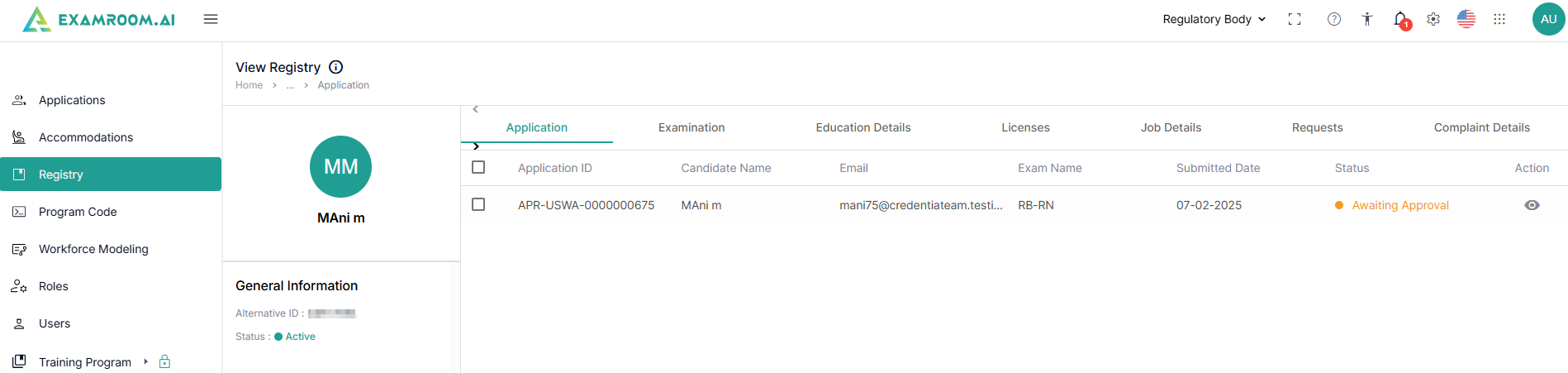
The Application tab displays all the submitted applications by the candidate.
- The Application section includes the details below:
- Application ID: Displays the unique ID generated.
- Candidate Name: Displays the name of the candidate.
- Email: Displays the candidate's email ID.
- Exam Name: Displays the exam name selected by the candidate.
- Submitted Date: Displays the application submitted date.
- Status: Displays the status of the request.
- Action: You have a view option to see the application details.
- You can view and review the Candidate Applications; refer to this View and Review an Application Form
Licenses
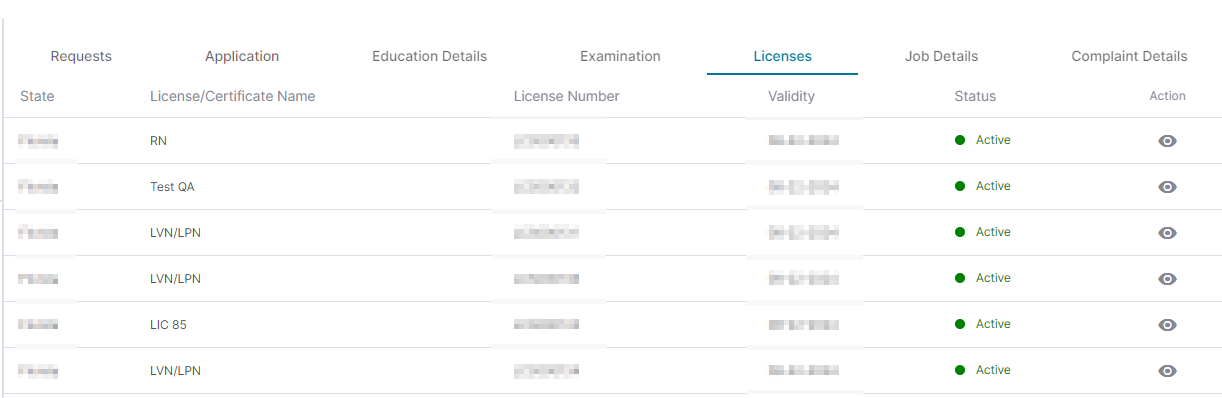
The Licenses tab displays the candidate's obtained licenses and certificates. You can also review and manage their licensing details. Presented in a tabular format with the following details:
- State: Indicates the state or region that issued the license.
- License/Certificate Name: Displays the name of the license or certificate.
- License Number: Shows the unique license number.
- Validity: Specifies the validity period of the license/certificate.
- Status: Reflects the status of the license request.
- Action: Provides an option to view detailed license information.
Click the View icon in the Action column to access the license details.
License Information
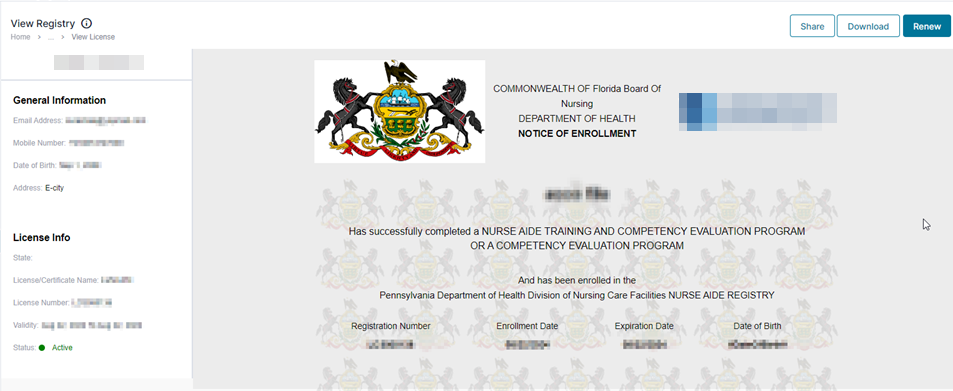
The License Information section includes General Details, License Info, and the certificate.
- The General Information section includes details such as Email Adress, Mobile Number, Date of birth and Adress.
- The License Info section includes details such as State, License/Certificate Name, Validity, and Status of the certificate.
- To take actions on the certificate, follow the following steps:
- Click the
Share button on the top right, enter the email, and add the comment to share the Licenses/Certificate.
- Click the
Download button on the top right to download the Licenses/Certificate.
- Click the
Renew button on the top right to renew the candidate’s License/Certificate.
- Click the
Requests
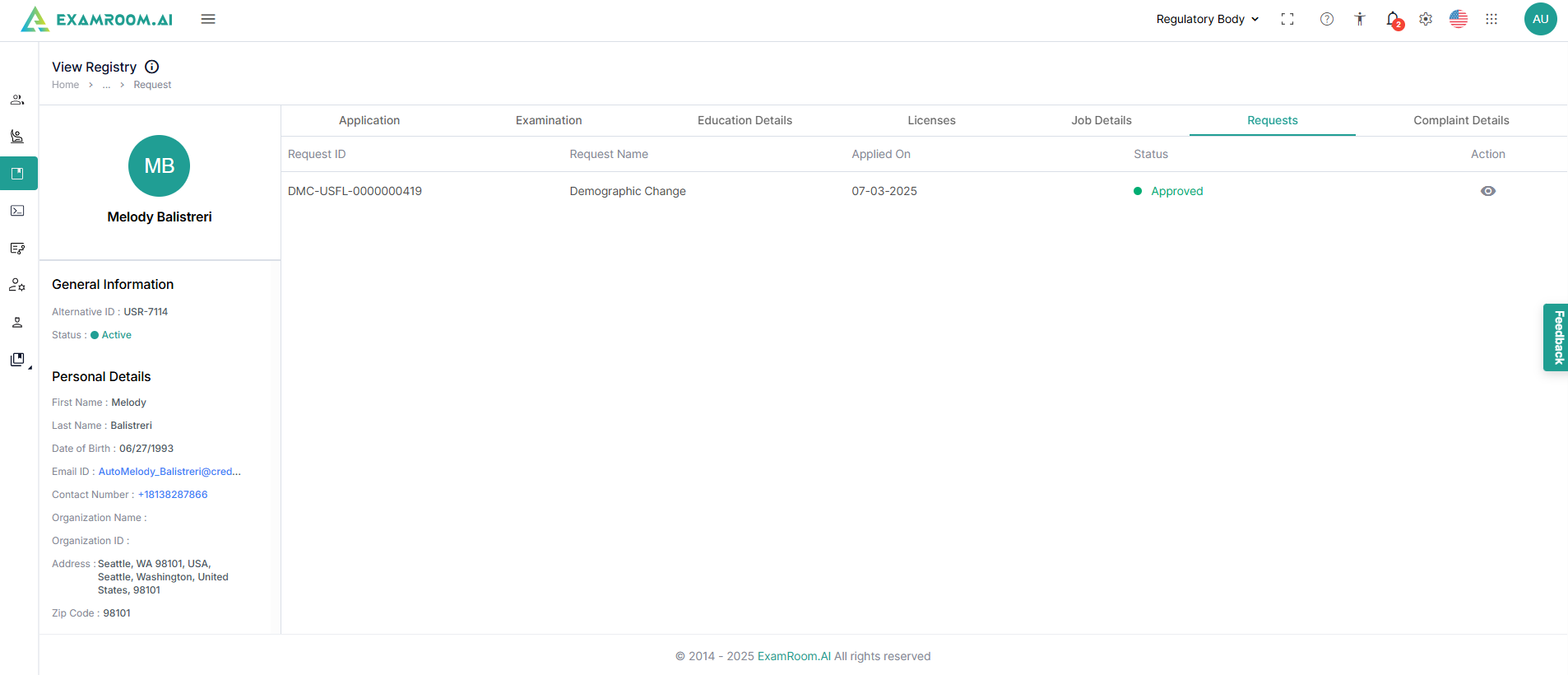
All the candidate’s requests are listed in the Request tab. You can also review and take action if the request is in the Awaiting Response status. You can review and manage all the requests.
- The Request Tab is displayed in a tabular format and contains the following details:
- Request ID: Displays the request ID generated.
- Request Name: Displays the name of the request submitted by the candidate.
- Applied On: Displays the date when the request was submitted.
- Status: Displays the status of the request.
- Action: View the request and its details.
- View the request details by clicking on the View icon.
- If a request is in the Awaiting Response status, you can review it and take action.